
Introduction
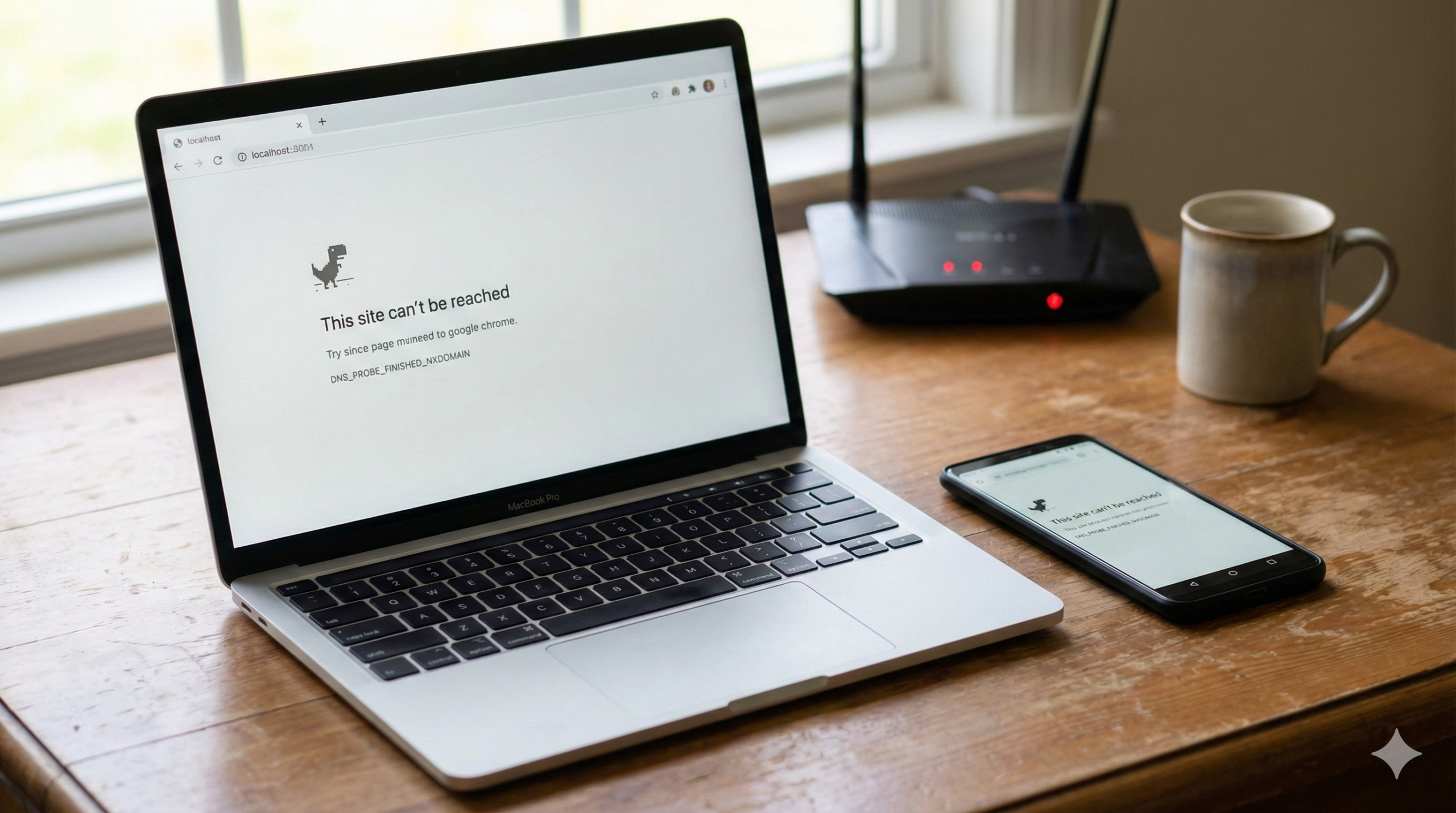
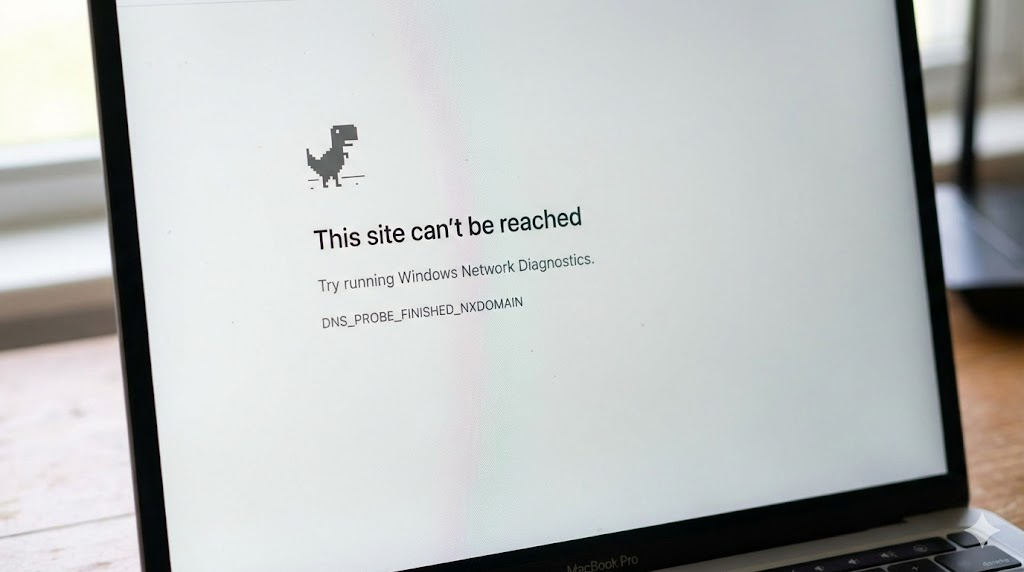
You try to open a website, but instead of the page loading, the browser says “This site can’t be reached.” It is annoying, frustrating, and usually happens when you need the internet the most. If you are seeing this error code, don’t worry—you are not alone. In this guide, we will show you exactly how to fix dns_probe_finished_nxdomain quickly and easily so you can get back online.
But what does this error actually mean? “NXDOMAIN” stands for Non-Existent Domain. Essentially, the Domain Name System (DNS)—which acts as the phonebook of the internet—cannot find the IP address that matches the website address you typed in. It’s like looking up a friend in a contact list but finding the page blank. It is rarely a hardware failure; it is almost always a lookup issue that we can solve.
Step 1: Flush Your DNS Cache
Your computer saves (caches) DNS results to load websites faster. Sometimes, this saved information gets outdated or corrupted, leading to connection errors. Clearing this cache is often the quickest fix.
Windows
- Click the Start button and type “cmd”.
- Right-click on Command Prompt and select Run as administrator.
- In the black window that appears, type the following command and press Enter:
DOS
ipconfig /flushdns
You should see a message saying: “Successfully flushed the DNS Resolver Cache.”
Mac
- Open Spotlight Search (Cmd + Space) and type “Terminal”.
- Open the Terminal app.
- Type the following command and press Enter (you may need to enter your password):
Bash
sudo dscacheutil -flushcache; sudo killall -HUP mDNSResponder
Step 2: Change DNS Servers (The #1 Fix)
If flushing the cache didn’t work, your Internet Service Provider’s (ISP) default DNS servers might be down or struggling. Switching to a fast, reliable public DNS like Google or Cloudflare is the most effective way to fix dns_probe_finished_nxdomain.
How to Change DNS on Windows
- Open the Control Panel.
- Go to Network and Internet > Network and Sharing Center.
- Click on Change adapter settings in the left sidebar.
- Right-click your active connection (Wi-Fi or Ethernet) and select Properties.
- Find Internet Protocol Version 4 (TCP/IPv4) in the list, select it, and click the Properties button.
- Select Use the following DNS server addresses and enter one of these options:
- Google DNS:
- Preferred:
8.8.8.8 - Alternate:
8.8.4.4
- Preferred:
- Cloudflare DNS:
- Preferred:
1.1.1.1 - Alternate:
1.0.0.1
- Preferred:
- Google DNS:
- Click OK and restart your browser.
Step 3: Android / Mobile Fix
Many users encounter this error specifically on mobile devices. If you are trying to fix dns_probe_finished_nxdomain on an Android phone or tablet, the process involves modifying your Wi-Fi configuration.
- Open Settings and tap on Wi-Fi.
- Press and hold the name of the Wi-Fi network you are currently connected to.
- Select Modify network (or “Manage network settings”).
- Tap on Advanced options.
- Look for IP Settings. It is likely set to “DHCP”. Change this to Static.
- Scroll down to the DNS 1 and DNS 2 fields.
- Enter the Google DNS addresses:
- DNS 1:
8.8.8.8 - DNS 2:
8.8.4.4
- DNS 1:
- Tap Save and reconnect to the Wi-Fi.
Step 4: Release and Renew IP Address
If the previous steps failed, you might have a conflict with your local IP address configuration. Requesting a new IP address from your router can often clear out deep-seated connection glitches.
- Open Command Prompt as an administrator (just like in Step 1).
- Type the following commands one by one, pressing Enter after each:
DOS
ipconfig /release
(Wait for the process to finish—your internet will briefly disconnect.)
DOS
ipconfig /renew
- Once the new IP is assigned, close the Command Prompt and try loading the website again.
Conclusion
The “DNS_PROBE_FINISHED_NXDOMAIN” error looks intimidating, but it is simply a communication breakdown between your device and the internet’s directory. By flushing your cache, changing your DNS servers to Google or Cloudflare, or renewing your IP address, you can usually resolve the issue in minutes.
Whether you are on a Windows PC, a Mac, or an Android phone, these steps are the industry standard to get you back online.
If you are comfortable using Command Prompt, check our other guides like fixing pip not recognized error for more terminal tips.
Yorumlar kapalı.