
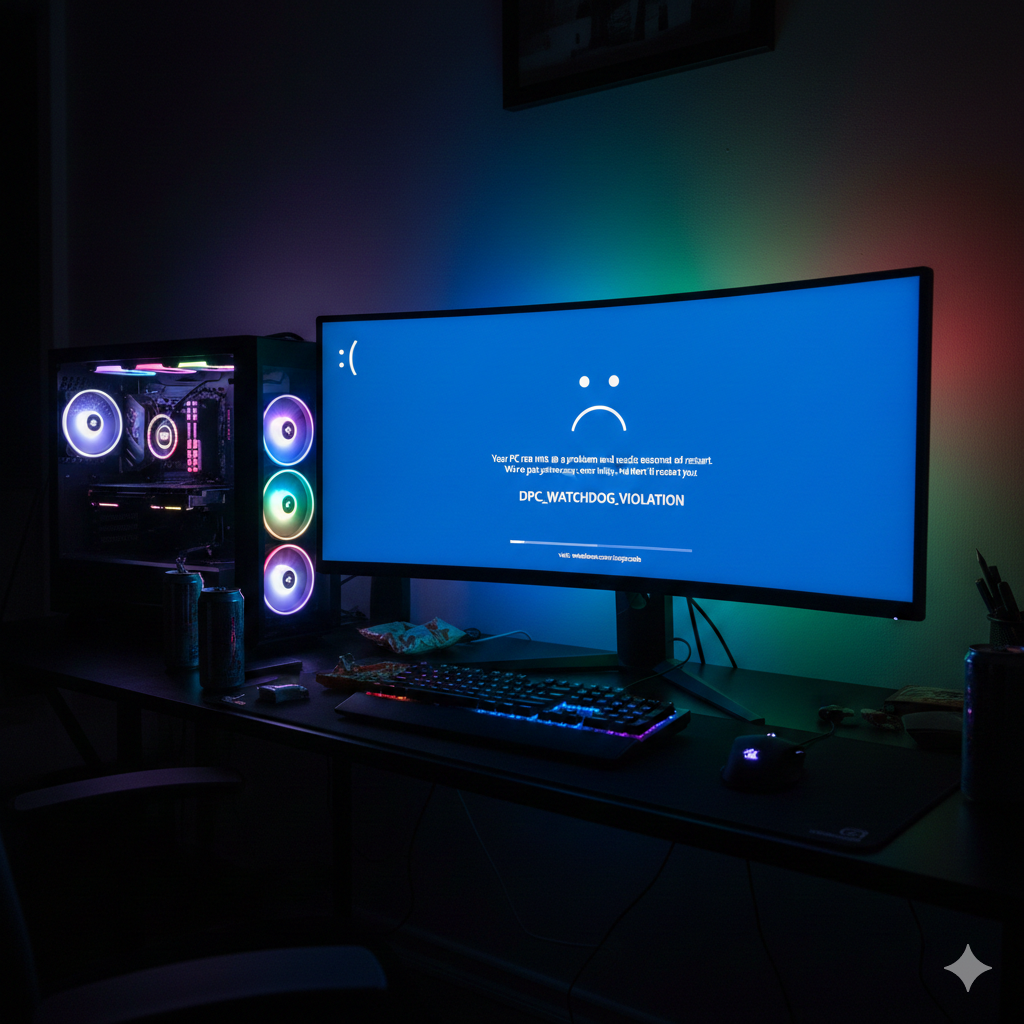
You are in the middle of a high-stakes gaming match or an intensive project, and suddenly—your screen freezes, and the dreaded Blue Screen of Death (BSOD) appears. To DPC WATCHDOG VIOLATION errors, you first need to understand what is happening under the hood.
DPC stands for Deferred Procedure Call. Think of the “Watchdog” as a bug checker that monitors your hardware drivers. If a driver takes too long to respond (usually due to a conflict or corruption), the Watchdog issues a stop code and shuts down the system to prevent data loss. For Windows 11 and 10 users, this is most commonly linked to SSD firmware or GPU driver delays.
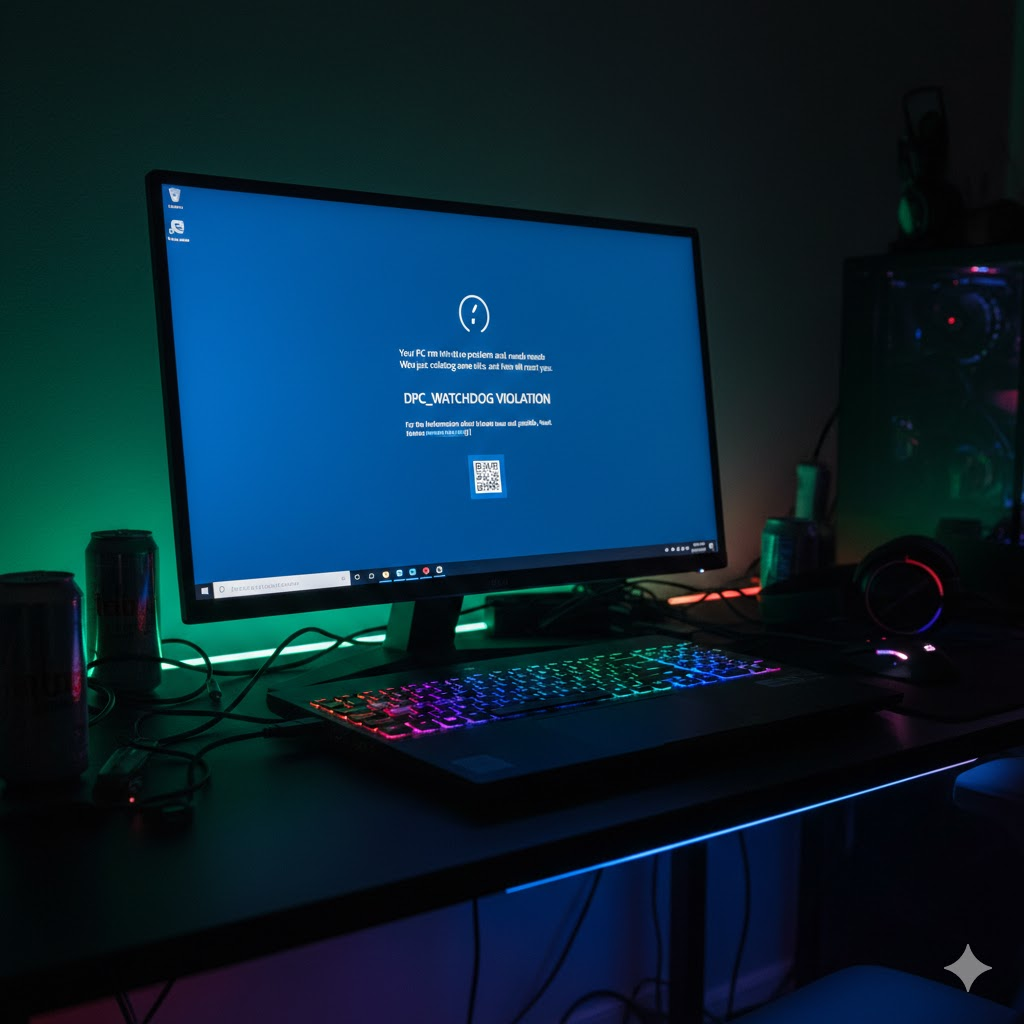
Step 1: The #1 Culprit – Change SATA AHCI Controller Driver
Statistically, the most effective way to resolve this BSOD is by swapping the generic storage driver. Many systems ship with a specific vendor driver that eventually clashes with Windows updates. Switching to the standard Microsoft version often resolves the timing issues.
How to update the SATA AHCI Controller:
- Press
Win + Xand select Device Manager. - Expand the IDE ATA/ATAPI controllers section.
- Right-click on Standard SATA AHCI Controller (or a similar name like Intel Management Engine) and select Update driver.
- Select Browse my computer for drivers.
- Click on Let me pick from a list of available drivers on my computer.
- Ensure Standard SATA AHCI Controller is selected and click Next.
- Restart your computer to apply the changes.
Step 2: Update Graphics Drivers (NVIDIA/AMD)
For gamers, the DPC WATCHDOG VIOLATION is frequently triggered by a GPU driver that has hung while trying to communicate with the kernel. If your drivers are outdated or were improperly installed, the Watchdog will pull the plug.
- NVIDIA Users: Open GeForce Experience, check for updates, and perform an “Express Installation.”
- AMD Users: Open AMD Software: Adrenalin Edition and check for the latest “Recommended” WHQL release.
- Pro Tip: If the error persists, use Display Driver Uninstaller (DDU) in Safe Mode to completely wipe the old driver before performing a clean install.
For more official troubleshooting steps, you can visit Microsoft’s support page.
Step 3: Run Disk Check (CHKDSK)
Since this error is heavily tied to storage latency, file system corruption can cause the “Watchdog” to time out while waiting for a response from the hard drive.
How to run CHKDSK:
- Type
cmdin the Windows search bar. - Right-click Command Prompt and select Run as Administrator.
- Type the following command and press Enter:
chkdsk /f /r - You will be asked if you want to schedule the volume to be checked the next time the system restarts. Type
Yand press Enter. - Restart your PC. Windows will scan and repair your drive before booting.
Step 4: Check for SSD Firmware Updates
Unlike traditional HDDs, SSDs rely heavily on internal firmware to manage data. An out-of-date firmware version can cause the drive to become unresponsive under heavy load, triggering the stop code.
- Identify your SSD brand (e.g., Samsung, Western Digital, Crucial).
- Download the official management tool (e.g., Samsung Magician, WD Dashboard, or Crucial Storage Executive).
- Check for “Firmware Updates” within the app. If an update is available, apply it and Restart.
Conclusion
Encountering a BSOD is frustrating, but the DPC WATCHDOG VIOLATION is rarely a sign of hardware failure. In 90% of cases, it is a “timing” issue caused by a driver conflict or an unresponsive SSD. By standardizing your SATA controller and keeping your GPU and SSD firmware updated, you can return to a stable, crash-free experience.
If you are also facing application launch errors after the restart, check our guide on fixing Error 0xc00007b.
Yorumlar kapalı.