
1. Introduction
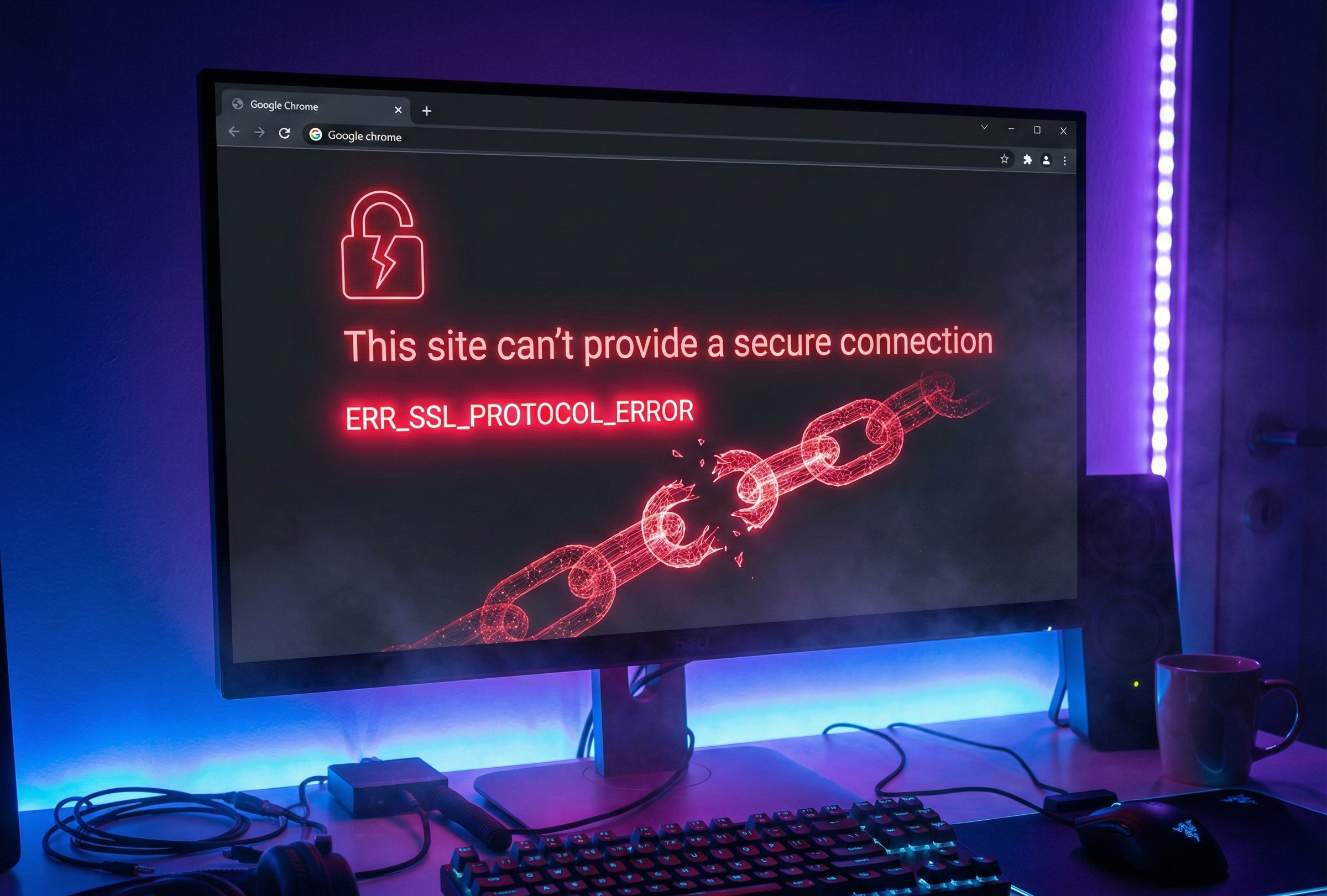
You sit down to work, ready to access your bank, a research portal, or just your favorite streaming site. You type in the URL, hit Enter, and wait. But instead of the content you expect, the screen goes white, and a stark, intimidating message stares back at you: “This site can’t provide a secure connection.”
Below that header, you see the dreaded error code: ERR_SSL_PROTOCOL_ERROR.
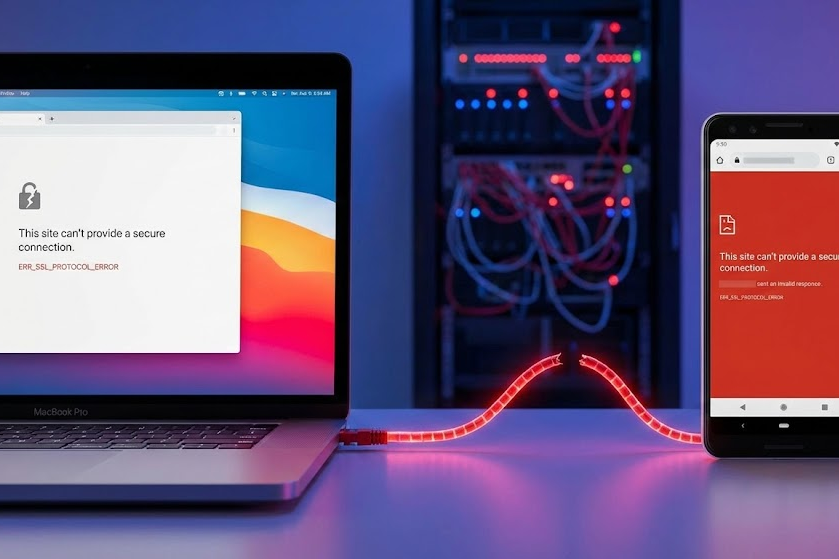
Often, this error is accompanied by a confusing sub-message stating that the site sent an invalid response. Panic sets in. Is the website down? Is your internet connection compromised? Is there a hacker on your network?
Take a deep breath. As a Senior Network Engineer who has troubleshooted connectivity issues for over 15 years, I can tell you that while this error looks technical and scary, it is rarely a sign of a security breach. It is simply a communication breakdown.
The “Secret Handshake” Failure
To understand why this happens, imagine a secret handshake. When your browser (Chrome, Edge, Firefox) connects to a secure website (one starting with HTTPS), they must agree on a code to encrypt the data. This is called the “SSL Handshake.”
If your browser attempts the handshake but the server sends back data that doesn’t match the expected “secret code” or format, the browser assumes the connection is unsafe and cuts the cord immediately. This results in an SSL protocol error.
The good news? The problem is usually on your end—specifically in your device’s settings or cached data—which means you have the power to fix it. This guide is the most comprehensive resource available to help you resolve the ERR_SSL_PROTOCOL_ERROR across Windows, Android, and macOS.
2. Quickest Fixes (Try These First)
Before we start digging into the registry or advanced network settings, we must eliminate the most common culprits. In my professional experience, 80% of ERR_SSL_PROTOCOL_ERROR tickets are resolved by the following two steps.
Check Your System Date & Time (The #1 Culprit)
It sounds too simple to be true, but an incorrect system clock is the leading cause of SSL errors.
The Engineering Logic: SSL certificates (the digital ID cards of websites) have very specific validity periods. They have a “Not Before” date and a “Not After” date. If your computer’s clock is set to the year 2015, or even just two days into the future, your browser looks at the website’s certificate and thinks, “This certificate isn’t valid yet,” or “This certificate has already expired.”
Because the math doesn’t add up, the secure connection fails.
How to Fix It:
- On Windows:
- Right-click the time displayed in the bottom-right corner of your taskbar.
- Select Adjust date/time.
- Ensure the toggle for Set time automatically is turned On.
- If it is already on, toggle it Off and then back On to force a sync with the Microsoft time servers.
- Check your “Time Zone” as well; the correct time in the wrong zone is still the wrong time universally.
- On macOS:
- Go to System Settings > General > Date & Time.
- Ensure Set time and date automatically is checked.
- On Android:
- Go to Settings > General Management > Date and time.
- Enable Automatic date and time.
Once adjusted, restart your browser and try the site again.
Clear Browser Cache & SSL State
If the clock wasn’t the issue, the next suspect is “stale” data. Your browser saves bits of websites to load them faster next time. However, if a website updates its security certificate but your browser is still holding onto the old, cached security information, they will clash.
We need to wipe the slate clean.
Action 1: Clearing Browser Cache (Chrome)
We need to clear the ERR_SSL_PROTOCOL_ERROR Chrome cache specifically.
- Open Google Chrome.
- Click the three vertical dots in the top-right corner.
- Navigate to Settings.
- On the left sidebar, click Privacy and security.
- Select Delete browsing data.
- Crucial Step: Set the “Time range” to All time.
- Check the boxes for:
- Cookies and other site data
- Cached images and files
- Click Delete data.
Note: This will sign you out of most websites, but it is necessary to ensure no corrupt authentication cookies are blocking the handshake.
Action 2: Clear SSL State (The “Magic Fix” for Windows)
This step is often overlooked by general users but is a staple in a network engineer’s toolkit. Your Operating System caches SSL certificates independently of the browser. Clearing this cache is often the only way to clear SSL state effectively.
- Press the Windows Key on your keyboard and type “Internet Options”.
- Click on the result named Internet Options (it may look like an old Control Panel icon).
- In the window that pops up, navigate to the Content tab.
- You will see a button labeled Clear SSL state.
- Click it.
- You should see a small popup message: “The SSL cache was successfully cleared.”
- Click OK and restart Chrome.
This forces your computer to renegotiate the security handshake from scratch for every website you visit next, eliminating any corrupted keys stored in the system.
For detailed steps on clearing cache across all devices, refer to the Google Chrome Help Center.
If you are a site owner, you can test your server’s configuration using the Qualys SSL Labs Test.
3. Advanced Browser Fixes
If the basic housekeeping didn’t work, we are looking at a browser-specific configuration issue. Chrome is fantastic, but it includes experimental features and protocols that sometimes conflict with older or strictly configured servers.
Fix ‘ERR_SSL_PROTOCOL_ERROR’ on Google Chrome via QUIC
Google developed a protocol called QUIC (Quick UDP Internet Connections) to make the web faster. It attempts to send data via UDP (User Datagram Protocol) rather than the standard TCP. While usually efficient, some office firewalls, ISPs, or specific web servers do not know how to handle QUIC traffic. When they reject it, they don’t always fall back to TCP gracefully—they just crash the connection, resulting in an SSL error.
How to Disable QUIC:
- Open a new tab in Chrome.
- In the address bar, type exactly:
chrome://flags/#enable-quicand hit Enter. - You will see a highlighted option labeled Experimental QUIC protocol.
- Change the dropdown setting from Default to Disabled.
- A button will appear at the bottom asking you to Relaunch. Click it.
After Chrome restarts, try the website. If it loads, your ISP or router was likely blocking the QUIC protocol.
Audit Your Extensions
Browser extensions have high-level access to your network traffic. An outdated ad-blocker, a VPN extension, or a “Privacy Protector” might be intercepting the SSL certificate to scan it, inadvertently breaking the chain of trust.
The Incognito Test:
- Open the website in an Incognito window (Ctrl + Shift + N).
- If the website loads fine in Incognito, one of your extensions is the culprit.
How to isolate the bad extension:
- Go to Settings > Extensions > Manage Extensions.
- Toggle Off all extensions.
- Turn them back On one by one, reloading the page each time until the error returns.
- Remove the offending extension.
4. Mobile Fixes
Mobile devices handle SSL slightly differently because they often rely on both system-level WebViews and app-specific browsers. Fixing ERR_SSL_PROTOCOL_ERROR on Android requires a different approach.
How to Fix ‘ERR_SSL_PROTOCOL_ERROR’ on Android
Smartphones are notorious for holding onto bad cache data to save battery and data usage.
1. Clear Chrome App Cache
- Go to your Android Settings.
- Tap on Apps (or App Management).
- Find and tap on Chrome.
- Tap on Storage & cache.
- Tap Clear cache. (Do not tap “Clear Storage” unless you want to lose your bookmarks and saved passwords).
2. Network Environment Test
Mobile devices move between WiFi and Cellular Data. Sometimes, the WiFi network you are using (e.g., a public coffee shop WiFi) has strict firewall rules preventing secure connections.
- Action: Turn off WiFi and enable 4G/5G mobile data.
- Refresh the page.
- Analysis: If the site works on data but not WiFi, the issue is not your phone—it is the WiFi network’s security configuration. You cannot fix this; you must wait until you are on a different network.
5. The “Invalid Response” Specifics
Fixing “Sent an Invalid Response” Error
Sometimes the error specifically reads: “The server sent an invalid response.”
This variation is highly specific. It means the browser sent the “Hello” message, the server received it, but the server replied with gibberish or a packet format the browser didn’t understand.
While this can be a server-side issue, if you see it on a major site (like YouTube, Facebook, or Amazon), the server is fine. The problem is a “Man-in-the-Middle.”
The Antivirus/Firewall Conflict Modern Antivirus software (Bitdefender, McAfee, Avast, Kaspersky) often includes “Web Shield” or “HTTPS Scanning” features. To protect you, the Antivirus intercepts your web traffic, decrypts it to check for viruses, re-encrypts it with its own certificate, and sends it to the browser.
Sometimes, this re-encryption fails, or the Antivirus uses an older SSL protocol that Chrome no longer supports.
WARNING: The following steps involve temporarily lowering your security shields. Proceed with caution and re-enable them immediately after testing.
How to Test:
- Open your Antivirus dashboard.
- Look for Web Shield, Online Threat Prevention, or HTTPS Scanning.
- Turn this feature OFF.
- Reload the website.
If the site loads immediately, your Antivirus is too aggressive. You do not need to leave it off permanently. Instead, look for a “Whitelist” or “Exceptions” list in your Antivirus settings and add the specific domain of the website you are trying to visit.
6. Operating System Specifics
Solutions for Windows 10/11 vs. macOS
The underlying OS handles domain name resolution (DNS), which can also trigger protocol errors if your computer is looking for the website at an old, incorrect IP address.
The Hosts File (Windows)
The “Hosts” file is a text file deep in Windows that acts like a manual override for DNS. If malware or an old IT setting modified this file, it might be pointing www.google.com to a dead IP address, causing an SSL mismatch.
- Press Windows Key + R, type
C:\Windows\System32\drivers\etc, and hit Enter. - Open the file named
hostsusing Notepad. - Look for any lines that don’t start with a
#. - If you see the domain name of the website you are trying to access listed there with an IP address next to it, delete that line.
- Save the file (you may need Administrator privileges) and restart.
Adjusting DNS (Universal Fix)
Sometimes your Internet Service Provider’s (ISP) DNS server is struggling to resolve the security keys correctly. Switching to a public, robust DNS can bypass this.
For Windows:
- Go to Control Panel > Network and Internet > Network and Sharing Center.
- Click Change adapter settings.
- Right-click your active connection (WiFi or Ethernet) and select Properties.
- Select Internet Protocol Version 4 (TCP/IPv4) and click Properties.
- Select Use the following DNS server addresses.
- Enter Google’s DNS:
- Preferred:
8.8.8.8 - Alternate:
8.8.4.4
- Preferred:
- Click OK and close windows.
For macOS:
- System Settings > Network.
- Click your connected network, then click Details.
- Click DNS.
- Click the + button and add
1.1.1.1(Cloudflare) or8.8.8.8(Google). - Click OK.
7. Deep Dive: Why “Clear SSL State” is Critical
I want to circle back to the Clear SSL State command because it is the most technically effective solution for Windows users.
When you connect to a secure server, your OS caches the “session key.” This allows you to reconnect to that server later without doing the heavy lifting of the cryptographic math all over again. It speeds up browsing significantly.
However, if that session key becomes corrupted, or if the server rotates its keys and your OS insists on using the old one, the server will reject the connection with an ERR_SSL_PROTOCOL_ERROR.
Clicking “Clear SSL State” does not delete cookies or history. It purely destroys the cache of these session keys. It is a non-destructive, high-impact fix that every user should try immediately after checking their system time.
8. FAQ
Q: Why does this happen only on one specific site? A: If only one site is failing, the issue might actually be on the server side. The website administrator might have an expired certificate or a misconfigured backend. However, it could also be that your cache for that specific site is corrupted. Try the “Clear SSL State” fix first. If that fails, check the site on a mobile phone using 4G data. If it fails there too, the site is down/broken.
Q: Is my internet connection unsafe if I see this? A: Not necessarily. The error means Chrome prevented a connection because it couldn’t verify safety. It’s actually a sign that your browser is doing its job correctly by blocking a potentially insecure link.
Q: Can a VPN cause this? A: Yes. VPNs encrypt traffic and route it through different servers. If the VPN server is flagged by the website, or if the VPN encryption protocol conflicts with the site’s SSL, this error occurs. Try disconnecting your VPN temporarily.
Q: I tried everything, and it still fails on my work laptop. A: If this is a corporate device, your IT department likely has a “Proxy” set up. Go to Chrome Settings > System > Open your computer’s proxy settings. If “Use a proxy server” is on, you likely cannot disable it without IT permission. The proxy itself may be misconfigured.
9. Conclusion
The ERR_SSL_PROTOCOL_ERROR is a nuisance, appearing like a wall between you and the content you need. But as we’ve covered, it is almost always a mismatch of data—a wrong time, a cached certificate, or an overzealous antivirus—rather than a catastrophic failure.
By methodically checking your time, clearing your SSL state, and disabling conflicting protocols like QUIC, you can resolve 99% of these occurrences.
While troubleshooting network issues on Windows, if you also experience system crashes, check our guide on how to fix DPC Watchdog Violation.
Setting up a development environment? Don’t miss our latest guide on resolving the externally-managed-environment error in Python.