
How to Fix Error 0xc00007b in Windows 10/11 (2026 Guide)
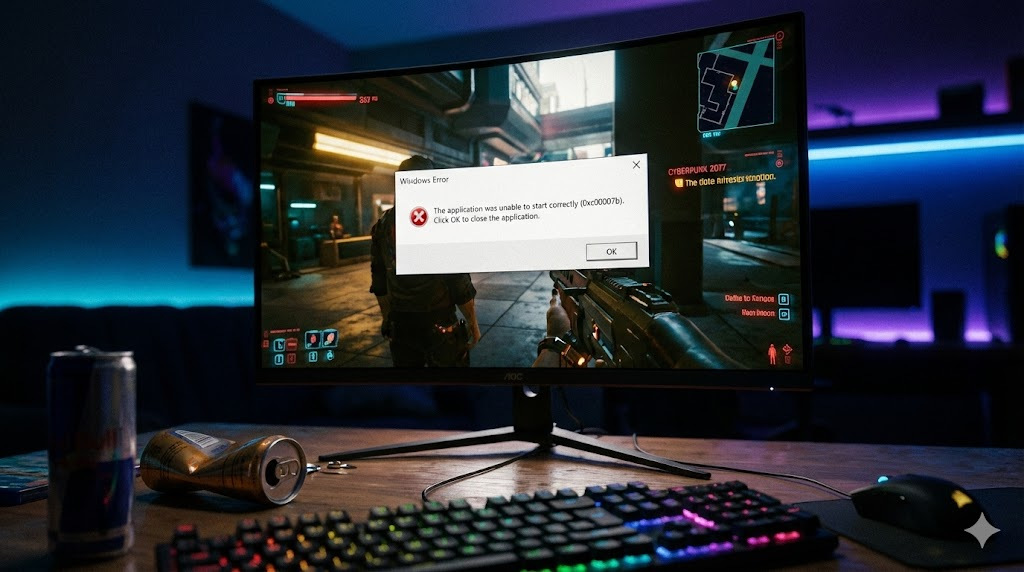
There are few things more frustrating than settling in to play a new game or opening a crucial application, only to be hit with a cryptic error message. If you are seeing a popup that says “The application was unable to start correctly (0xc00007b). Click OK to close the application,” you are not alone.
This specific error is notorious for plaguing gamers trying to launch titles like GTA V, Valorant, Elden Ring, or Far Cry, as well as users of heavy software like Adobe Photoshop. While the code looks intimidating, the fix is usually straightforward.
This guide covers the most effective methods to resolve error 0xc00007b on Windows 10 and Windows 11, updated for 2026.
Sometimes, games crash because of missing files. See our latest guide on VCRUNTIME140.dll missing error.What Causes Error 0xc00007b?
Before diving into the fixes, it helps to understand why this happens. In the simplest terms, error 0xc00007b is almost always a conflict between 32-bit and 64-bit system files.
Windows 10 and 11 are 64-bit operating systems, but many applications and games still rely on 32-bit components. If an application tries to load a 64-bit DLL (Dynamic Link Library) when it expects a 32-bit one (or vice versa), the application crashes instantly with this error. This usually stems from:
- Corrupted DirectX files.
- Mismatched or missing Visual C++ Redistributables.
- Issues with the .NET Framework.
⚠️ CRITICAL WARNING: When facing missing file errors, never download individual .dll files from random third-party websites. These files are often outdated, incompatible, or infected with malware. Always replace files using official installers from Microsoft.
Solution 1: Reinstall DirectX (Most Common Fix)
The most frequent culprit for gamers is a corrupted DirectX installation, specifically files like xinput1_3.dll or d3dx9_43.dll. Even if you think you have the latest version, reinstalling the runtime libraries often overwrites corrupted files with clean ones.
- Go to the official Microsoft website and search for the DirectX End-User Runtime Web Installer.
- Download the setup file (dxwebsetup.exe).
- Right-click the installer and select Run as administrator.
- Follow the on-screen prompts. The installer will scan your system and replace any missing or corrupt DirectX SDK components.
- Restart your computer and try launching the game again.
Solution 2: Repair Visual C++ Redistributables
If DirectX wasn’t the issue, your Visual C++ libraries are likely to blame. Applications rely on these libraries to run, and it is very easy to mix up the x86 (32-bit) and x64 (64-bit) versions.
How to fix this efficiently:
You can try to repair them individually, but the cleanest method is to reinstall the packages.
- Press the Windows Key, type Control Panel, and hit Enter.
- Go to Programs > Uninstall a program.
- Look for items named Microsoft Visual C++ Redistributable. You will likely see many versions (2008, 2010, 2013, 2015-2022).
- Ideally, you want to uninstall the existing 2015-2022 versions (both x86 and x64) and reinstall them fresh.
- Visit the Microsoft support page for “Latest supported Visual C++ Redistributable downloads.”
- Download the X86 and X64 versions of the generic “2015-2022” package.
- Install both files. Note: Even if you are on a 64-bit Windows, you must install the x86 version because many games run on 32-bit architecture.
Solution 3: Run as Administrator
Sometimes, the error is simply a matter of permissions. If an application cannot access a specific DLL file in the System32 folder because of administrative restrictions, it may throw the 0xc00007b error.
- Locate the shortcut or the .exe file of the application you are trying to run.
- Right-click the icon and select Properties.
- Click on the Compatibility tab.
- Check the box that says Run this program as an administrator.
- Click Apply and OK, then try launching the app.
Solution 4: Reinstall / Enable .NET Framework
The .NET Framework is the backbone for many Windows applications. If it is disabled or corrupted, applications will fail to start.
- Press the Windows Key and type Turn Windows features on or off. Click the result to open it.
- Look for .NET Framework 3.5 (includes .NET 2.0 and 3.0) and .NET Framework 4.8 Advanced Services.
- If they are unchecked: Check the boxes and click OK. Windows will download the necessary files.
- If they are already checked: Uncheck them, restart your computer, go back to this menu, and check them again to force a refresh.
Conclusion
Error 0xc00007b is annoying, but it is rarely a sign of a broken operating system. By systematically refreshing your DirectX, Visual C++, and .NET libraries, you fix the architecture conflicts that cause the crash. In 90% of cases, simply reinstalling DirectX and the Visual C++ packages solves the problem completely.
To make your search easier, CLICK HERE for the direct official download link for the Visual C++ All-in-One package.
Yorumlar kapalı.