
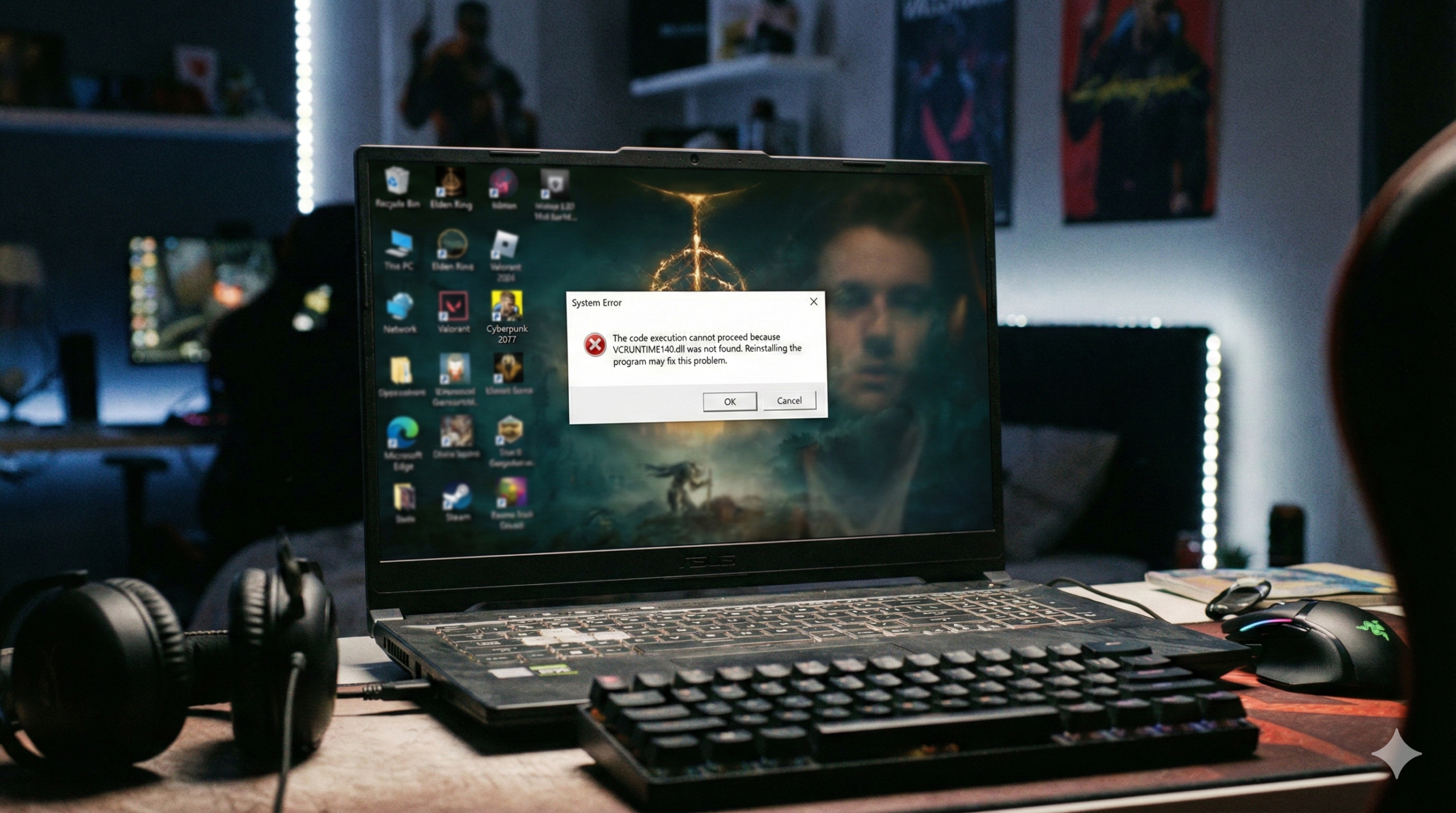
How to Fix VCRUNTIME140.dll Missing Error in Windows 10/11 (2026 Guide)
If you are unable to launch your favorite games because of the VCRUNTIME140.dll missing error, don’t worry; this guide will help you fix it in minutes.
If you have just tried to launch a favorite game like GTA V, Fortnite, or Skyrim, or perhaps a creative tool like Adobe Photoshop, you may have been stopped cold by this error message:
“The code execution cannot proceed because VCRUNTIME140.dll was not found. Reinstalling the program may fix this problem.”
This is one of the most common errors in the Windows ecosystem. The good news is that it is rarely a sign of a virus or serious hardware failure. It simply means a program is trying to borrow a “book” (a library file) from a “library” (the Visual C++ package) that isn’t currently on your shelf.
This guide will walk you through the three most effective methods to get your software running again.
The Cause: What is VCRUNTIME140.dll?
This file is part of the Microsoft Visual C++ Redistributable package. Developers use these packages to write code for their applications. When you run their app, your computer needs the corresponding runtime files to translate that code into action. If the file is deleted, corrupted, or simply never installed, the application crashes immediately.
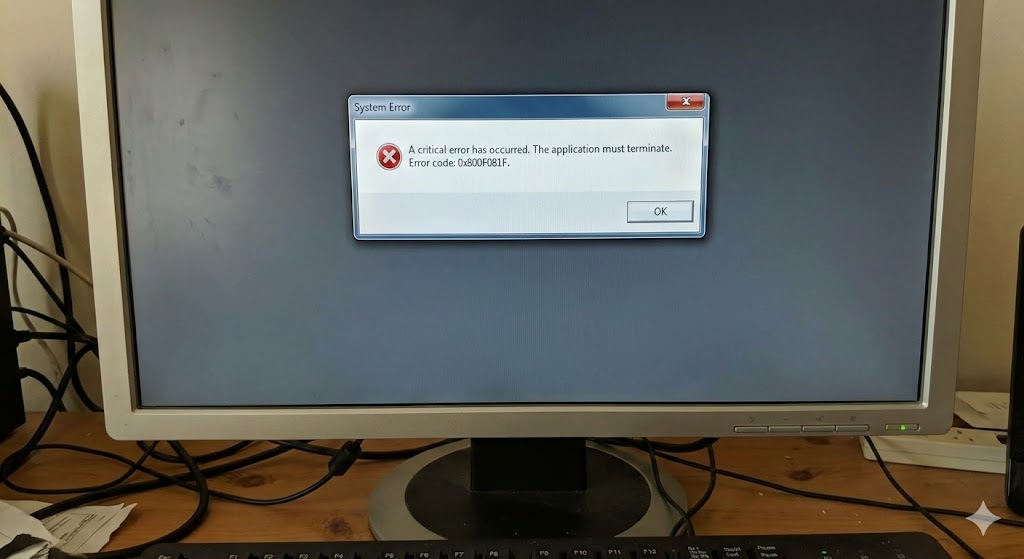
Solution 1: Install Visual C++ Redistributable (The #1 Fix)
In 95% of cases, the error occurs simply because the required runtime libraries are missing. Even if you are running a 64-bit version of Windows, you often need both the x64 and x86 versions of the libraries, because many games and applications are still built on 32-bit architecture.
Steps to Fix:
- Visit the official Microsoft Visual C++ Redistributable download page.
- Look for the section titled “Visual Studio 2015, 2017, 2019, and 2022”.
- Download both of the following files:
vc_redist.x64.exevc_redist.x86.exe
- Run both installers. If it asks to “Repair” instead of “Install,” choose Repair.
- Restart your computer once both are finished.
Note: Do not download DLL files from third-party “DLL fix” websites. These are often outdated or infected with malware. Always get system files directly from Microsoft.
Solution 2: Run the System File Checker (SFC)
If installing the packages above didn’t work, a system file might be corrupted. Windows has a built-in tool that can scan your system for damaged files and automatically replace them with fresh copies.
Steps to Fix:
- Press the Windows Key, type
cmd. - Right-click on Command Prompt and select Run as administrator.
- In the black window, type the following command and press Enter:
DOS
sfc /scannow
- Wait for the process to reach 100%.
- If it says: “Windows Resource Protection found corrupt files and successfully repaired them,” try launching your program again.
If your game is still crashing with different error codes, make sure to check our guide on how to fix Error 0xc00007b.Solution 3: Re-register the DLL File
Sometimes the file is present on your computer, but Windows has “forgotten” where it is or how to use it. You can force Windows to re-register the file in its internal registry.
Steps to Fix:
- Open Command Prompt as an administrator (just like in Solution 2).
- Type the following command and press Enter:
DOS
regsvr32 vcruntime140.dll
- If successful, you will see a pop-up confirming the registration.
- Restart your computer and test the application.
Conclusion
By following these steps, you should have restored the missing VCRUNTIME140.dll file. In the vast majority of cases, Solution 1 (installing both x86 and x64 redistributables) is the silver bullet for getting you back into Photoshop or your game session.
If you continue to experience issues after trying all three methods, the issue may lie with the specific application itself. In that case, reinstalling the game or program is the recommended final step.
To download the specific Visual C++ package mentioned in Solution 1, click here.
Yorumlar kapalı.