
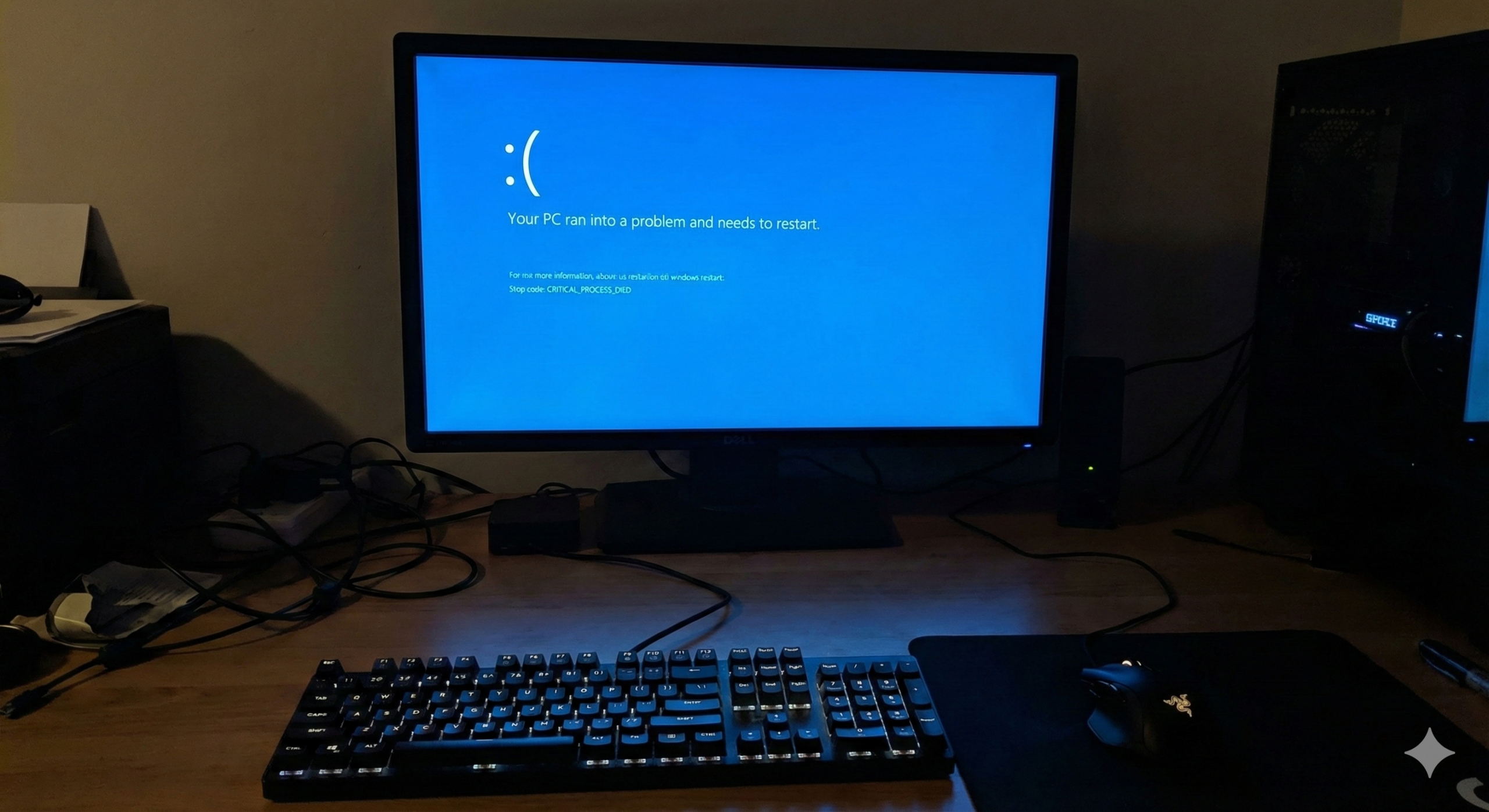
How to CRITICAL_PROCESS_DIED Fix: Windows 10/11 Guide (2026)
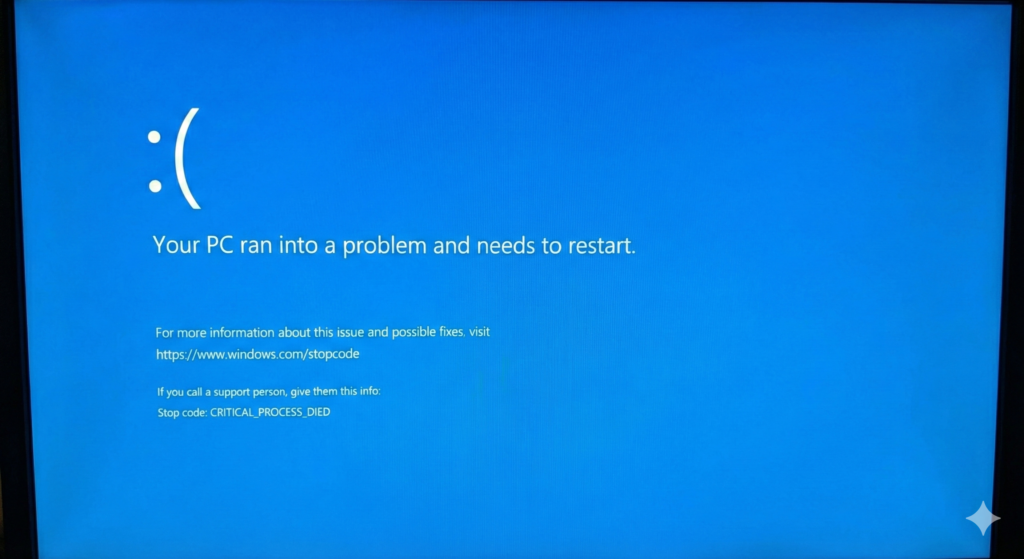
Did your PC just restart with a scary blue screen saying CRITICAL_PROCESS_DIED? Don’t panic. You aren’t alone, and in most cases, your computer is not broken beyond repair. This error usually sounds more intimidating than it actually is.
In simple terms, this error code means a critical background process—like a driver or a system file that Windows needs to operate—unexpectedly stopped working. Because Windows didn’t know how to handle the sudden stop, it shut down to protect your system. The good news is that this is a software issue that is almost always fixable. In this guide, we will walk you through a proven CRITICAL_PROCESS_DIED fix that has helped thousands of users get their PCs back to normal.
If you are also dealing with permission issues on Windows, check our guide on how to Fix Error 0x80070005.
Step 1: The Quick Hardware Check (Easiest Solution)
Before we dive into software settings, let’s rule out the most common culprit: external hardware. Sometimes, a faulty USB drive or an old printer driver can confuse Windows and cause a crash.
- Shut down your computer completely.
- Unplug everything except your mouse, keyboard, and monitor. This includes USB flash drives, external hard drives, printers, webcams, and game controllers.
- Restart your computer.
If your computer boots up normally and stays stable, one of those devices was the issue. You can plug them back in one by one to find the faulty device. If the error persists, proceed to Step 2.
Step 2: Run SFC and DISM Tools (The Most Effective Fix)
This is the “magic bullet” for most Blue Screen errors. Windows has two powerful built-in tools that can scan your system for corrupted files and automatically replace them with healthy ones.
How to Run the System File Checker (SFC)
- Click on the Start button (or press the Windows Key).
- Type cmd.
- Right-click on Command Prompt in the search results and select Run as administrator. (If a box pops up asking for permission, click Yes).
- In the black window that appears, type the following command exactly as shown and press Enter:
DOS
sfc /scannow
- What this does: It looks for damaged or missing Windows files and fixes them.
- Wait patiently: This process can take 10-15 minutes. Once it finishes, it will tell you if it found and repaired any corrupt files.
How to Run the DISM Tool
If the SFC scan didn’t fix the issue (or said it couldn’t fix some files), run this deeper repair tool immediately after.
- In the same Command Prompt window, type the following command and press Enter:
DOS
DISM /Online /Cleanup-Image /RestoreHealth
- Note: It might look like it’s stuck at 20% or 40% for a few minutes. This is normal. Do not close the window.
- Once it says “The operation completed successfully,” restart your computer.
For more details on system file repair, you can visit the official Microsoft Support page for SFC.
Step 3: Update Drivers via Device Manager
If your system files are healthy, a specific driver might be causing the crash. Old or incompatible drivers are a frequent cause of the CRITICAL_PROCESS_DIED error.
- Right-click the Start button and select Device Manager.
- Look through the list for any device with a yellow exclamation mark (!) next to it. This indicates a broken driver.
- If you see one, right-click it and select Update driver > Search automatically for drivers.
- Even if you don’t see yellow marks, it is best practice to update your Display adapters (graphics card) and Disk drives:
- Expand the Display adapters section.
- Right-click your graphics card (e.g., NVIDIA, AMD, or Intel) and select Update driver.
Step 4: Run the Hardware and Devices Troubleshooter
Windows used to have an easy button for this, but in newer versions of Windows 10 and 11, it’s hidden. We can still launch it manually to find hardware conflicts.
- Open Command Prompt (you don’t need administrator rights for this one, but it’s fine if you have them).
- Type or paste the following command and press Enter:
DOS
msdt.exe -id DeviceDiagnostic
- A “Hardware and Devices” window will pop up. Click Next and follow the on-screen instructions. Windows will scan your hardware and attempt to apply fixes automatically.
Conclusion
We know how stressful a Blue Screen of Death can be, but following these steps solves the CRITICAL_PROCESS_DIED error for about 90% of users. By removing external devices, repairing system files with SFC/DISM, and updating your drivers, you have likely cleared out the corruption causing the crash.
Did this guide help you get your PC back up and running? Let us know in the comments below!
If you can’t access your desktop to run these commands, we can look at how to boot into Safe Mode instead.
Here is the step-by-step guide on how to enter Safe Mode.
Since the CRITICAL_PROCESS_DIED error often prevents Windows from loading normally, you will likely need to use Method 2 (The “Hard Reboot” Method), but I have listed the easier method first just in case you can still reach your login screen.
Method 1: The “Shift + Restart” Trick (If you can reach the Login Screen)
If your computer turns on and gets to the screen where you usually type your password, do this:
- On the sign-in screen, click the Power icon (bottom right corner).
- Press and hold the Shift key on your keyboard.
- While still holding Shift, click Restart.
- Don’t let go of the Shift key until you see a blue screen that says Choose an option.
- Go to Troubleshoot > Advanced options > Startup Settings.
- Click Restart.
- After your PC restarts, you will see a list of options. Press 5 or F5 to select Safe Mode with Networking.
- Note: We choose “Networking” so you can still use the internet to run the DISM repair command if needed.
Method 2: The “Hard Power Off” Method (If you are stuck in a Boot Loop)
If your computer crashes before you even see the login screen, you need to force Windows into the “Automatic Repair” mode. This requires timing, but it works.
- Turn off your PC completely.
- Press the Power button to turn it on.
- Immediately when you see the Windows logo (or your PC manufacturer’s logo like Dell/HP/Lenovo) and the spinning dots appear, press and hold the Power button for 5-10 seconds to force a hard shutdown.
- Repeat this process 2 more times. (Turn on -> See Logo -> Force Shutdown).
- On the 4th time, turn it on and let it run. Windows will detect that it failed to start 3 times and will launch Automatic Repair.
- You will see a screen saying “Automatic Repair couldn’t repair your PC” (or similar). Click Advanced options.
- Navigate to Troubleshoot > Advanced options > Startup Settings.
- Click Restart.
- Press 5 or F5 for Safe Mode with Networking.
What to do once you are in Safe Mode
Your screen will look different—the wallpaper might be black, and icons will look large. This is normal.
Once you are in, you can try the fixes from the previous guide:
- Open Command Prompt as Administrator.
- Run
sfc /scannow. - Run
DISM /Online /Cleanup-Image /RestoreHealth.
How to Exit Safe Mode
To go back to normal mode, simply Restart your computer through the Start menu as you normally would. It should attempt to boot into standard Windows automatically.
Yorumlar kapalı.