
How to Fix ‘pip’ is not recognized Error in Windows 10/11 (2026 Guide)
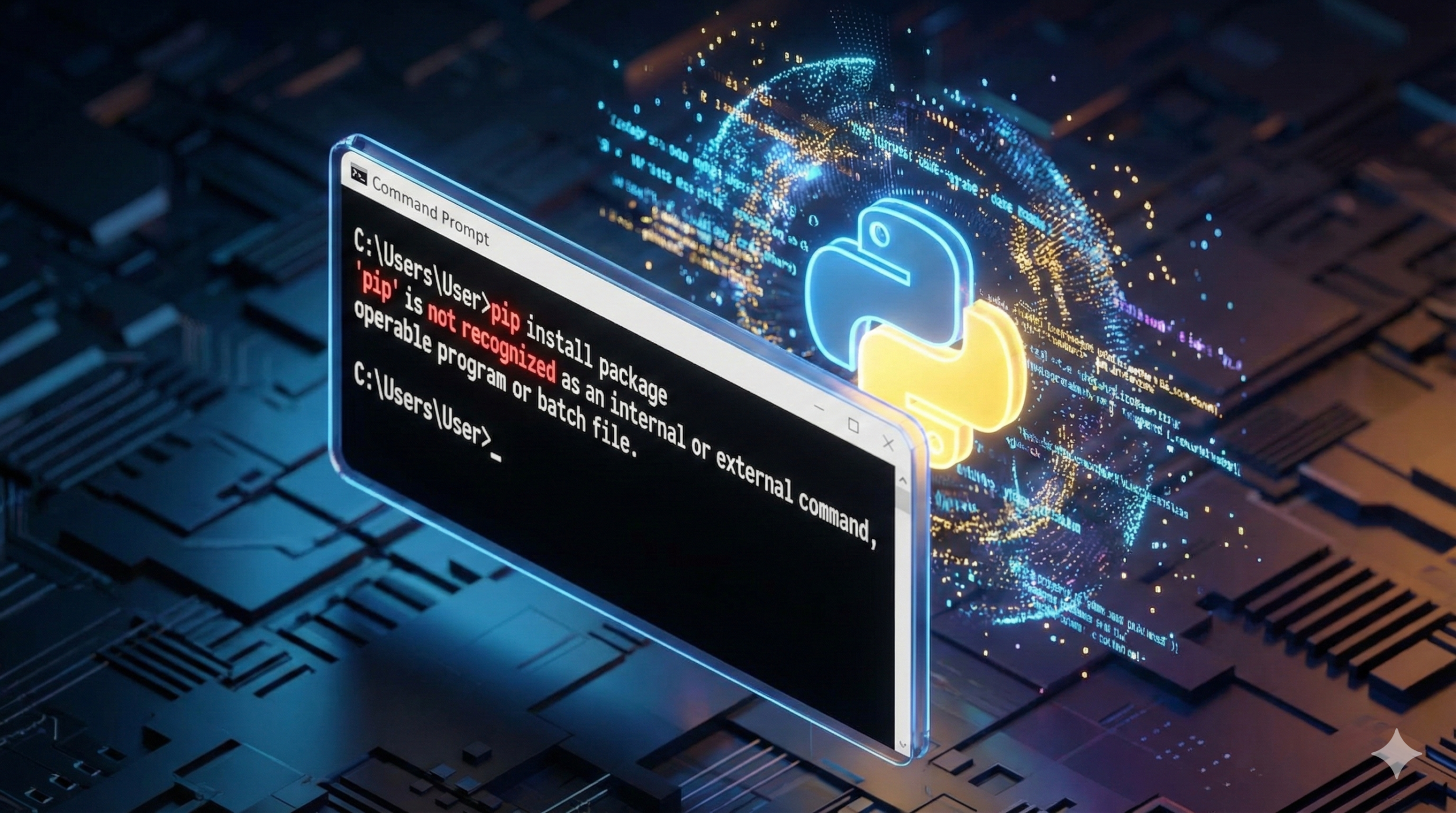
You just installed Python and tried to install a library, but Command Prompt gave you the dreaded message: ‘pip’ is not recognized as an internal or external command, operable program or batch file.
It’s a frustrating roadblock, especially when you are excited to start coding. But don’t worry—this is one of the most common errors for beginners, and it is completely fixable.
The error usually happens because while Python is installed, Windows doesn’t know where to look for the ‘pip’ tool. It is missing from your computer’s System PATH, which is like an address book that tells Windows where to find your programs.
In this guide, we will walk you through exactly how to fix pip is not recognized so you can get back to programming.
Step 1: Verify Python Installation (The Basics)
Before we fix the path, we need to ensure Python is actually installed correctly on your system.
- Open your Start Menu and search for “cmd”.
- Click on Command Prompt.
- Type the following command and press Enter:
DOS
python --version
- If you see a version number (e.g.,
Python 3.12.1): Python is installed, and you can proceed to Step 3 (Manual Fix) or Step 2 (Easy Fix). - If nothing happens or you get an error: Python is not installed. You should proceed to Step 2 immediately.
Step 2: The Reinstall Method (The Easiest Fix for Beginners)
If you are a beginner, the easiest way to solve this is to reinstall Python. The Python installer has a hidden feature that fixes this issue automatically, but most people miss it the first time.
- Go to Settings > Apps > Installed Apps and uninstall your current version of Python.
- Download the latest version of Python from the official website.
- Run the installer. STOP at the very first screen.
- Look at the bottom of the window. You must check the box that says Add Python to PATH.
Note: If you do not check Add Python to PATH, the error will persist.
- Click Install Now.
Once finished, this usually solves the issue for 99% of users.
Download Python from the official Python website.
Step 3: Adding Pip to PATH Manually (The “Pro” Fix)
If you already have Python installed and don’t want to reinstall it, you can add pip to your Windows PATH manually.
1. Locate your Python Scripts Folder
First, you need to find where pip is hiding. It is usually in a folder named Scripts. The default path often looks like this:
C:\Users\YourName\AppData\Local\Programs\Python\Python312\Scripts
- Open File Explorer.
- Navigate to your Python installation folder.
- Open the Scripts folder and copy the address from the top bar.
2. Open Environment Variables
- Press the Windows Key and search for “Environment Variables”.
- Select Edit the system environment variables.
- In the window that pops up, click the Environment Variables button at the bottom right.
3. Edit the Path
- In the bottom section labeled System variables, look for the variable named Path.
- Select Path and click the Edit button.
- Click New on the right side.
- Paste the path to your Scripts folder that you copied earlier.
- Click OK on all open windows to save your changes.
Step 4: Verify the Fix
Now it is time to test if we successfully managed to fix pip is not recognized.
- Important: You must close any open Command Prompt windows and open a new one for the changes to take effect.
- Type the following command:
DOS
pip --version
If the fix worked, you will see a message similar to this:
Plaintext
pip 24.0 from C:\Users\YourName\AppData\Local\Programs\Python\Python312\site-packages\pip (python 3.12)
Since you are already using the Command Prompt, it’s good practice to ensure your system is healthy. Learn how to fix system crashes in our CRITICAL_PROCESS_DIED guide.
Conclusion
Congratulations! You have successfully configured your development environment. You can now install packages using pip install package_name without any issues. The technical side is sorted—now you can focus on building your project. Happy coding!
Sometimes, even after fixing the path, you might face permission issues when installing packages. If so, check our guide on how to Fix Error 0x80070005.
Yorumlar kapalı.