
1. Introduction
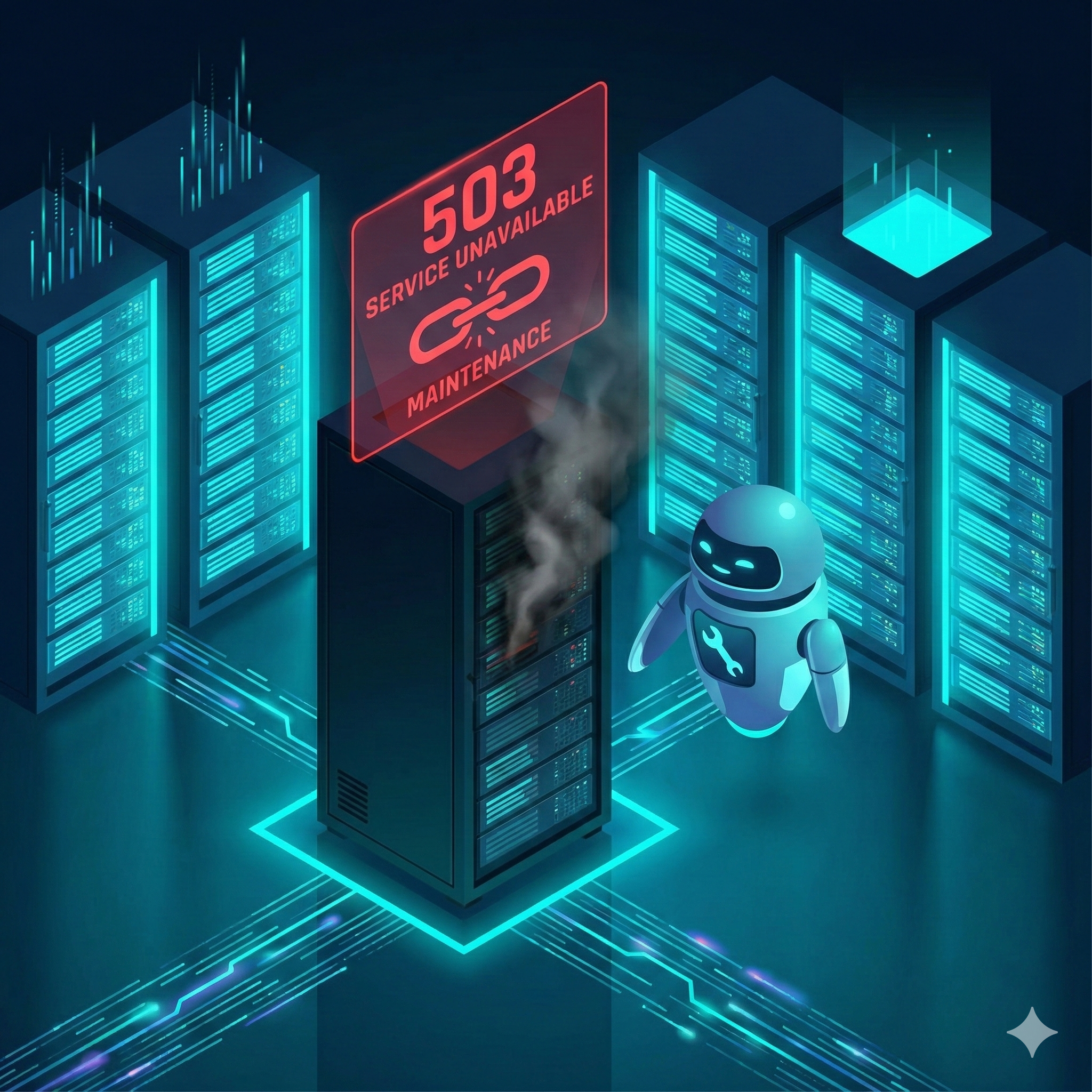
You try to visit a website, perhaps your own, expecting to see the homepage. Instead, you get a stark, white screen with black text saying “Service Unavailable.” Panic? Not yet.
In the world of server administration, few things are as universally misunderstood as the error 503. Unlike the dreaded “404 Not Found,” which implies data has vanished, or the “500 Internal Server Error,” which suggests the server has broken its own logic, a 503 error is actually a polite message. It is the server saying, “I am functioning, but I cannot handle your request right now.”
As a Senior Server Administrator, I encounter http error 503 service unavailable alerts daily. Whether you are a casual visitor trying to read a blog or a Website Administrator watching your uptime plummet, this guide is designed to help you understand why this happens and, more importantly, how to fix it.
2. What Does “503 Service Unavailable” Mean?
Understanding the 503 Error Code
To understand the error 503, you have to understand the language of the internet: HTTP status codes.
- 200 range: Everything is great.
- 400 range: The client (you) did something wrong (e.g., asked for a page that doesn’t exist).
- 500 range: The server did something wrong.
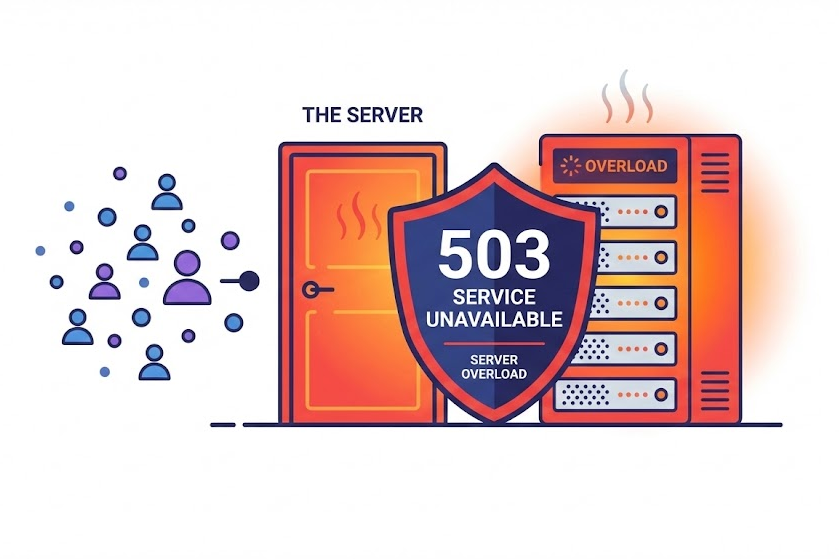
However, the 503 service temporarily unavailable code is unique. It signifies that the web server is technically running and reachable, but it is currently unable to process the incoming HTTP request. Think of it like calling a customer support line. If the line is dead, that’s a connection error. If you get a busy signal because all operators are currently talking to other people, that is a 503 error.
Common Variations
Depending on the server software (Apache, Nginx, IIS, or Microsoft Azure) and browser you are using, you might see different variations of this error. They all mean the same thing:
- 503 Service Temporarily Unavailable
- Http/1.1 Service Unavailable
- HTTP Server Error 503
- 503 Error
- Error 503 Backend fetch failed (Specific to Varnish Cache)
- The server is temporarily unable to service your request due to maintenance downtime or capacity problems.
For a technical breakdown of status codes, refer to the MDN Web Docs on HTTP 503 status.
3. Why Is This Happening? (Common Causes)
Before we jump into the fixes, we need to diagnose the root cause. A what is 503 error diagnosis usually points to one of four culprits:
1. Server Maintenance
This is the “good” kind of 503. If a server administrator is updating software or migrating a database, they will often manually trigger a 503 status. This tells search engines (like Google) to “come back later” rather than de-indexing the site because it’s down.
2. Traffic Overload
Servers have fixed resources (RAM and CPU). If a website suddenly goes viral, receives a “Reddit hug of death,” or is targeted by a DDoS (Distributed Denial of Service) attack, the incoming requests outnumber the server’s ability to answer them. The server starts dropping new connections, resulting in an error 503.
3. Faulty Plugins or Themes (WordPress)
For the millions of sites running on CMS platforms, fix 503 error wordpress is a top search query. Often, a poorly coded plugin or an incompatible theme update can create a script that runs in an infinite loop, exhausting the server’s memory in seconds.
4. Varnish/Cache Miscommunication
If you use a reverse proxy or caching accelerator like Varnish, you may see error 503 backend fetch failed. This happens when the caching layer (the doorman) accepts your request but the actual server (the backend) fails to reply within the timeout limit.
4. How to Fix Error 503 (For Visitors)
If you do not own the website and are simply trying to access content, your options are limited but often effective.
3 Quick Fixes if You Are Just a Visitor
1. Refresh the Page It sounds too simple to be true, but because most 503 errors are caused by temporary traffic spikes, a simple refresh often works. The server capacity might free up the second you click refresh.
- Windows/Linux: Press
Ctrl+RorF5. - Mac: Press
Cmd+R.
2. Restart Your Router/Modem Occasionally, the “Service Unavailable” message is actually a DNS or connectivity issue on your end that is misinterpreting the server’s response. Power cycling your router clears your local cache and re-establishes the connection.
3. Come Back Later If the site is experiencing a massive surge in popularity, no amount of refreshing will help. In fact, aggressive refreshing only adds to the server load. Wait 15 to 30 minutes and try again.
5. How to Fix Error 503 (For Site Owners & Admins)
If you are the administrator, a 503 error is a critical issue that affects your revenue and SEO. Here is a step-by-step troubleshooting guide, ranging from simple fixes to advanced server configuration.
Developers debugging backend scripts should ensure their environment is set up correctly to avoid externally managed environment errors.
Reboot the Server
When in doubt, turn it off and on again. If your server is hosting a web application that has a memory leak, or if the chain of processes has become hung, a reboot is the fastest way to clear the gridlock.
If you have SSH access, use the command: sudo reboot
If you are on a shared hosting plan (like Bluehost or SiteGround), you can usually find a “Restart Services” or “Reboot Server” button in your cPanel or hosting dashboard.
Check for Maintenance Mode
If you are running WordPress, the platform has a built-in maintenance mode that activates whenever you update plugins or the core software. Sometimes, the update script times out, but the system “forgets” to take the site out of maintenance mode.
If you are stuck in maintenance mode, check the official WordPress support guide on common errors.
The Fix:
- Connect to your server via FTP/SFTP.
- Navigate to the root directory of your WordPress installation (usually
public_html). - Look for a file named
.maintenance. - Delete this file.
- Refresh your website.
Fix “Error 503 Backend Fetch Failed”
This is a very specific error associated with Varnish Cache. Varnish sits in front of your web server (like Apache or Nginx) to speed up loading times.
If Varnish waits for a response from the backend server and doesn’t get one (perhaps the query is too heavy), it throws the error 503 backend fetch failed.
The Fix: You likely need to increase the timeout limit in your Varnish Configuration Language (VCL) file.
- Locate your VCL file (usually
/etc/varnish/default.vcl). - Look for the
backend defaultblock. - Add or modify the
.first_byte_timeoutparameter.
Kod snippet’i
backend default {
    .host = "127.0.0.1";
    .port = "8080";
    .first_byte_timeout = 600s; # Increase this value
}
- Restart Varnish:
service varnish restart.
Disable Faulty Plugins (WordPress)
If you cannot access your WordPress admin dashboard (wp-admin) because of the 503 error, a plugin is likely the culprit. You need to disable them manually to find the bad actor.
The Steps:
- Connect to your server via FTP/SFTP.
- Navigate to
/wp-content/. - Find the folder labeled
plugins. - Rename this folder to
plugins_old. - Try to load your website.
- If the site loads: One of your plugins is broken.
- Next Step: Rename the folder back to
plugins. Go inside the folder and rename individual plugin folders one by one (e.g.,contact-form-7_old) until the site breaks again. The last one you touched is the cause.
Check Server Resources (RAM/CPU)
If your code is clean and you aren’t in maintenance mode, you might simply be outgrowing your hosting plan.
How to Check:
- Linux Command Line: Type
toporhtopto see real-time resource usage. If your CPU usage is consistently at 100% or your Swap memory is full, the server will start killing processes (often the web service) to save itself, resulting in a 503. - Hosting Dashboard: most hosts provide graphs showing “Resource Usage.”
The Solution:
- Short term: Enable a CDN (Content Delivery Network) like Cloudflare to offload traffic from your server.
- Long term: Upgrade your RAM or move from Shared Hosting to a VPS (Virtual Private Server) or Dedicated Server.
Verify Firewall Logs (UFW / IPTables)
Sometimes, an over-aggressive firewall configuration might interpret legitimate traffic as an attack and cut off the connection, leading to service unavailability.
Check your firewall logs. If you are using a WAF (Web Application Firewall) like Sucuri or Cloudflare, ensure that your origin server isn’t accidentally blocking the WAF’s IP addresses.
6. Conclusion
The HTTP Error 503 Service Unavailable is frustrating, but it is rarely fatal to a website. It is simply a sign that your server is overwhelmed, undergoing maintenance, or struggling with a specific script.
For visitors, patience is the key. For administrators, the solution lies in systematic troubleshooting: clear the maintenance mode, check your plugins, ensure your Varnish cache is communicating correctly, and verify that your server has enough “muscle” (RAM/CPU) to handle your traffic.
Sometimes a connection issue mimics a server error. If other sites are also failing, try our guide to fix DNS_PROBE_FINISHED_NXDOMAIN.
7. FAQ
Is Error 503 a virus? No. A 503 error is a server-side response code. It does not indicate that your computer or the website is infected with a virus, though a malware infection on the server can sometimes cause resource exhaustion that leads to a 503.
How long does a 503 error last? It depends on the cause. If it is due to a scheduled maintenance window or a temporary traffic spike, it may last only a few minutes. If it is caused by a broken plugin or deep server configuration error, it will persist until an administrator fixes it.
Can a 503 error fix itself? Yes, frequently. If the error is caused by a temporary traffic overload, the error will disappear once the traffic volume decreases.